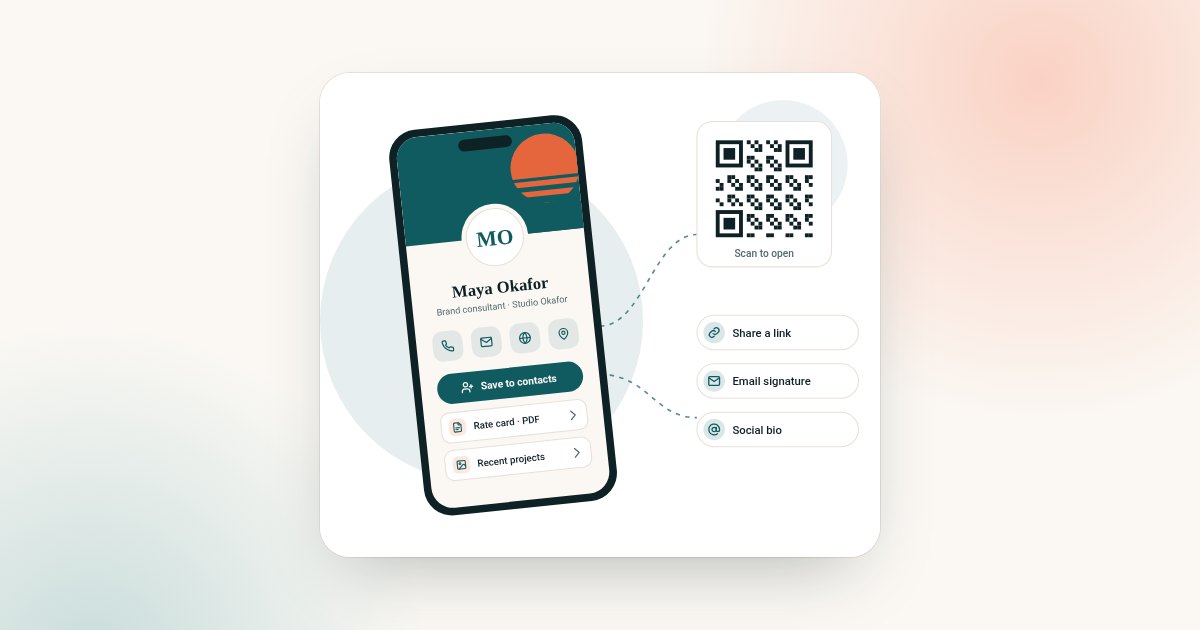
To make a digital business card, decide what the card must achieve, gather your contact details and brand assets, build a profile on a digital card platform, add a clear call to action, test the link and QR code on more than one phone, then share it through every channel you already use. The whole process takes less than an hour, and you can edit the result at any time afterwards.
This guide is for anyone setting up their first card, or rebuilding one that nobody seems to use. It covers what a digital business card is, how it works behind the scenes, the seven steps to build one properly, a comparison with the alternatives, a checklist to run before you pay for anything, and the mistakes that most often make a card fail.
What a digital business card is
A digital business card is a web page that holds your professional details — name, role, company, phone, email, links, and anything else you want people to have — and that you share with a link or a QR code. The person receiving it opens the page in the browser already on their phone or computer. They do not need an app, an account or any particular device, and they can save you to their contacts in one step.
Because the card is a web page rather than a printed object, three things change compared with paper:
- It never runs out. One link can be shared an unlimited number of times.
- It stays correct. When your number or job title changes, you edit the profile once and every copy already shared shows the new version.
- It can do more. A paper card holds a few lines of text. A digital profile can hold a portfolio, documents, a booking link, an enquiry form and your social channels.
How it works
Every digital business card has the same three parts.
- The profile. This is the page itself, hosted by the card provider at a permanent address. You edit it from a dashboard in your browser.
- The share routes. The same profile can be reached by a plain link, a QR code, a link in your email signature or a link in your social bio. All routes point at one page, so there is only ever one version of you to maintain.
- The save step. When someone opens your profile they can add you to their phone contacts with a single button, which is the moment that turns a conversation into a contact.
On plans that include lead tools, a fourth part is added: the person viewing your profile can leave their own details, so the exchange works in both directions.
Step 1: decide what the card is for
Before you open any builder, write one sentence describing what you want people to do after they look at your card. "Book a call", "request a quote", "follow my work" and "save my number" lead to quite different profiles. That sentence becomes your call to action, and it decides which sections go near the top.
Think too about where you will share it most. If most introductions happen face to face, the QR code matters most. If they happen in email and video meetings, the link and email signature matter most. You can use every route, but knowing your main one helps you test the right thing in Step 6.
Step 2: gather your details and assets
Collect everything in one place before you start, so you are not stopping halfway to search for a logo:
- Full name exactly as you want it to appear, plus pronouns if you use them
- Job title and company name
- One phone number and one email address you actually answer
- Website, booking page and the two or three social profiles that matter for work
- A recent, well-lit headshot, and your logo as a square image
- Brand colours as hex codes, if you have them
- Any documents you regularly send, such as a price list or capability statement
Fewer, better links beat a long list. A profile with twelve buttons makes people choose; a profile with four tells them where to go.
Step 3: choose a platform and plan
Pick a provider that lets you keep editing without a monthly fee, works without an app on the recipient's side, and gives you a permanent address that will not change if you edit the content. Check whether the price is a one-time payment or a subscription, and what happens to your profile if you stop paying.
On this site there are two plans. Brand Presence covers the full profile: details, social links, documents, blog, products, testimonials, gallery, templates, password protection, visibility and order controls, contact display and analytics. Business Add-ons includes all of that plus CRM, card scanner, reviews, bookings, enquiries, contact leads, subscribers, forms and export. Both are one-time payments; you can see the price for your market on the digital business card page.
Step 4: build the profile
Start with a template, then work from the top down:
- Header. Photo or logo, name, title and company. This is what people see in the first second.
- Call to action. One primary button that matches the sentence from Step 1.
- Contact block. Phone, email and the save-to-contacts button.
- Links. Website, booking page and your chosen social profiles.
- Proof. A short gallery, a few testimonials you have permission to use, or a document.
Write a one-line introduction under your name in plain language — what you do and for whom. Avoid internal jargon that a stranger would not understand.
Step 5: set privacy and visibility
Decide what should be public. Most people show a work email and work phone, and keep personal numbers off the profile. Use visibility controls to hide sections you only want some people to see, or add password protection to a version you share with existing clients. Remember that anything on a public profile can be forwarded, so publish only what you are comfortable with anyone reading.
Step 6: test before you share
Testing takes five minutes and catches most problems:
- Open the link on an iPhone and on an Android phone, and on a laptop.
- Scan the QR code from a phone screen and from a printed slide or poster, at arm's length.
- Press every button, including save-to-contacts, and check the saved contact looks right.
- Ask a colleague to open it cold and tell you what they think you want them to do.
If their answer does not match your sentence from Step 1, move your call to action higher or remove distractions.
Step 7: share it everywhere you already work
Put the link where people already look for you:
- Your email signature, so every message carries it — the virtual business card page covers signatures and video calls in detail
- Your social bios and messaging apps
- Proposals, invoices and slide decks
- Your phone lock screen or a saved image, so the QR code is two seconds away in person
For remote introductions, sending a single link is often enough; the online business card page explains link-first sharing.
Related guides in this series
- How to share a digital business card on WhatsApp, LinkedIn and email: practical sharing steps for each channel.
- Digital business card vs vCard file: what a contact file can and cannot do.
- What to put on a digital business card: a checklist by profession: what to include for your job.
- Online vs digital vs virtual business card: which sharing style fits you.
- Digital business card checklist: a pre-launch check.
Digital business card compared with the alternatives
| Question | Paper card | PDF or image of a card | Digital business card |
|---|---|---|---|
| Can you edit it after sharing? | No | No — you must resend | Yes, instantly |
| Can it hold links and documents? | No | Links rarely clickable | Yes |
| Does the recipient need an app? | No | No | No |
| Can they save you in one step? | No — they type it in | No | Yes |
| Can it run out? | Yes | No | No |
| Can you see if it was opened? | No | No | Yes, with analytics |
Buying checklist
Run through these before you pay for any digital card:
- Is there a one-time price or a recurring fee, and is the total clear before checkout?
- Does the recipient need anything other than a browser?
- Can you edit the profile at any time without extra charges?
- Does the address stay the same when you change the content?
- Is there a save-to-contacts button?
- Can you hide sections or password-protect the profile?
- If you want leads, are enquiry forms and export included in your plan?
- Is the refund policy written down and easy to find?
Mistakes to avoid
- Too many links. Every extra button dilutes the one you want pressed.
- No call to action. A profile that only lists details leaves people unsure what to do next.
- A blurry or old photo. It is the first thing people see; replace it when you would replace a paper card.
- Testing on one phone only. Always check both major phone systems and a desktop browser.
- A tiny QR code. On slides and posters, make it large enough to scan from a seat at the back of the room.
- Forgetting to update. The main advantage of a digital card is that it stays current, so put a reminder in your calendar to review it every few months.
Frequently asked questions
How long does it take to make a digital business card?
Most people finish a good first version in under an hour if they gather their details first. The profile is set up online after checkout, and you can keep refining it afterwards.
Do I need design skills?
No. Templates handle layout, fonts and spacing. You supply your details, photo, logo and brand colours.
Does the person I share it with need an app?
No. The profile opens in the browser they already have, on any modern phone or computer.
Can I change my card after I have shared it?
Yes. Edit the profile and every link and QR code already shared shows the updated version straight away.
Is a digital business card a subscription?
It depends on the provider. On this site both plans are a single one-time payment.
Which plan should I choose?
Choose Brand Presence if you mainly need a complete profile. Choose Business Add-ons if you also want CRM, bookings, enquiry forms, lead capture and export.
Ready to start? Compare the plans on the digital business card page.